Know where every client stands without chasing anyone.
Clients, jobs, tasks and invoices, linked like they are in real life, so “how is that client doing?” has one answer. Ask your AI for every client’s update; you edit and send.
Clients Jobs Tasks Invoices , linked.
A week
A week in a four-person studio.
Nobody rebuilds a status report by hand, because the work already knows which client and which job it belongs to.
- 01
Monday: a new client asks about a project
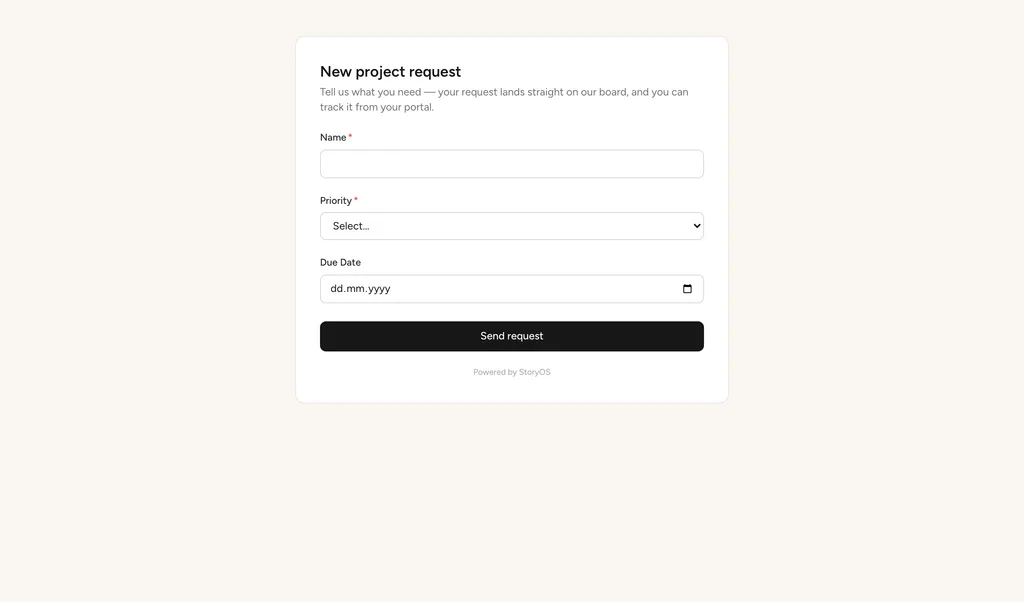
An “Ask us about a project” form on your site asks for the name, the business, what they need and a rough budget. Each answer lands as an enquiry, in the client’s own words. Nobody copies anything out of an inbox.
Ask your AI to draft a quote for this enquiry from what we charged last time.
- 02
Tuesday: the job has everything on it
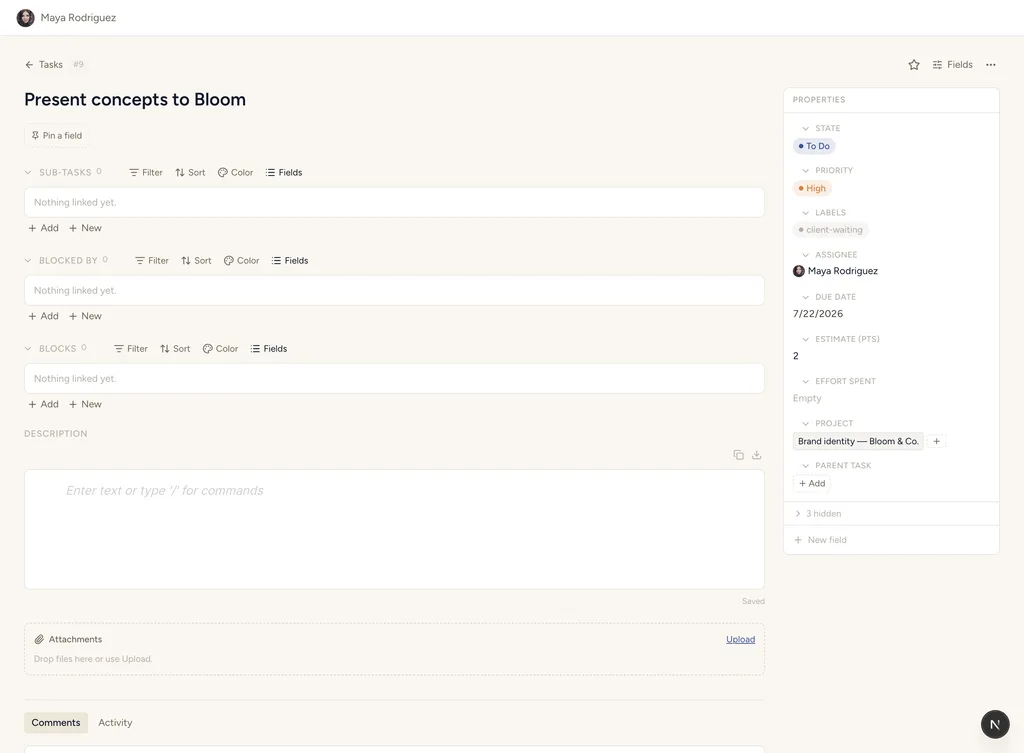
A bakery wants its Christmas flyers again. Open the job and the client, the two tasks, the draft invoice and the request she phoned in are on one page. You asked your AI for the quote; it priced it from last year’s order and left it in a comment with an agent badge, waiting for your OK.
Swipe to see the whole view - 03
Wednesday: every client at a glance
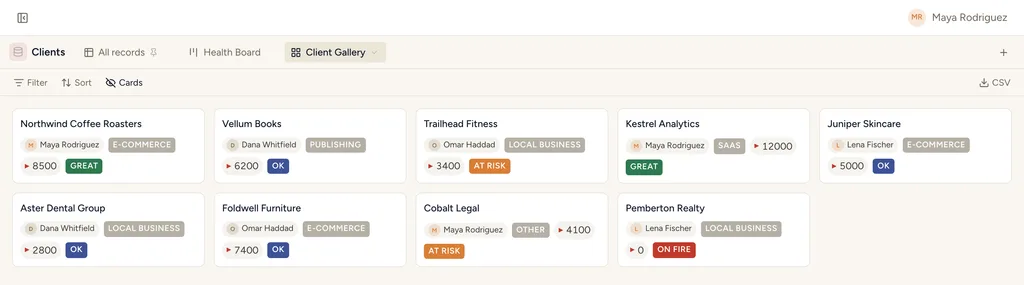
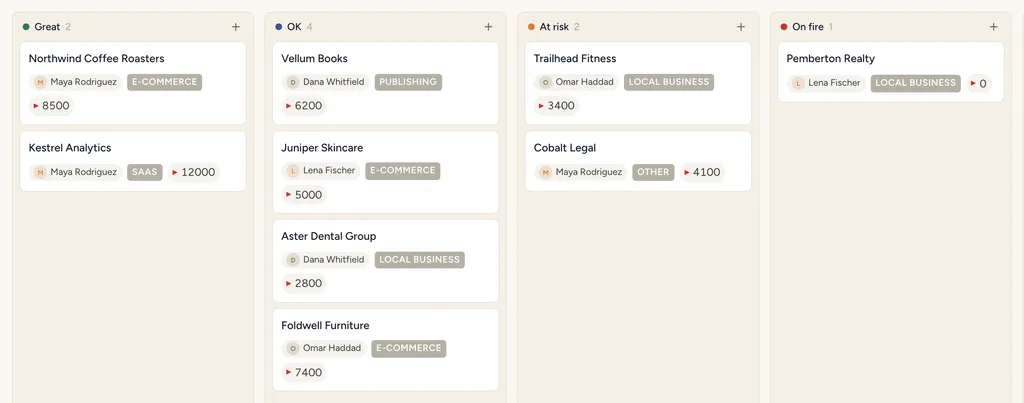
Clients grouped by how they are doing, each with who looks after it and what it is worth a month. The one at risk is a glance, not a meeting.
Ask your AI to draft this week’s update for every client from their open jobs and tasks.
agent Ask your AI to draft the welcome packet and a first-week checklist for a new client. The Agency OS template includes an Onboarding Assistant for this (early access).
- 04
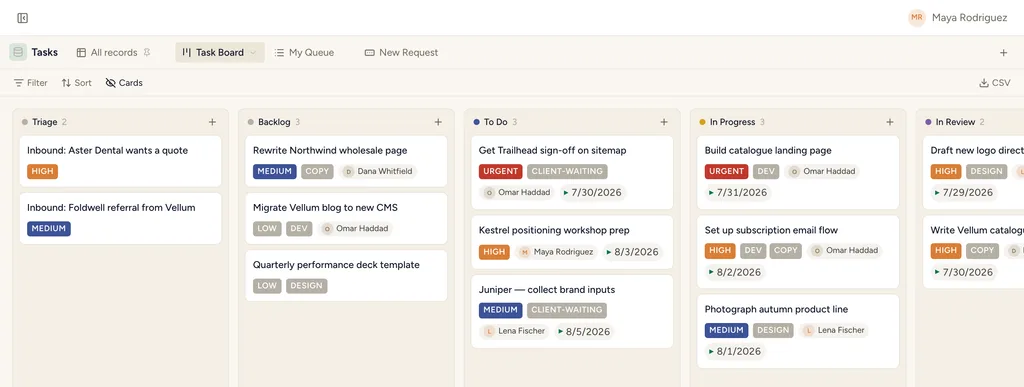
Thursday: what are we waiting on?
To do, Doing, Waiting on customer, Done. Every card names who is on it, when it is due and which client it is for, so “what are we waiting on?” is one column, not a round of messages.
Ask your AI to tell me which jobs are waiting on the client, and since when.
agent Ask your AI to draft the “ready for your review” message for a client: what changed, what you need from them, by when. The Client Portal template includes an Approval Drafter for this (early access).
- 05
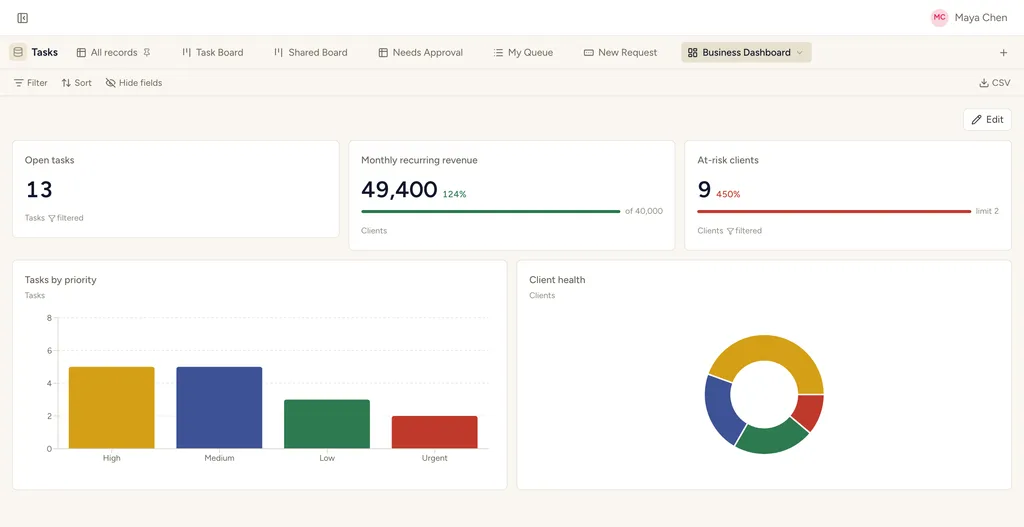
Friday: money and jobs, added up
One dashboard over the same records: money still waiting to come in, jobs on the go, new enquiries and tasks left. Nobody filled in a spreadsheet to make it.
Swipe to see the whole view
Your own AI
Ask your own AI to…
Connect Claude or ChatGPT and ask in plain words. It reads the same clients, jobs and tasks your team does, and the moves that matter wait for your yes.
It connects over MCP and reads how your business is laid out before it changes anything. Its changes are badged as the AI’s, under your name, and an admin can require a person’s approval before any AI deletes a record. It runs on the subscription you already have; we never meter it. How StoryOS works with AI
agent Hired agents are early access and run on your own computer, in your own Claude Code. Agents that come with a template install switched off. Today, the way to get work done is to ask your AI; every draft waits for your yes.
- …turn these call notes into tasks on the right job, with owners and dates.
- …tell me which clients have had no update from us in two weeks.
- …list every overdue invoice with its client and amount.
- …set up the job, its tasks and a draft invoice for this new client from their brief.
Templates
Start from a template for your business.
Each one installs a studio already mapped: clients, jobs, tasks and invoices, linked. Rename anything to fit yours. Clients can follow their work as guests, who are always free.
-
Template
Client Projects & Tasks
Clients, their projects, the tasks and the invoices, already linked, with a project timeline.
-
Business Pack
Agency OS
Clients, contacts, projects and tasks, a board of how each client is doing, and the Onboarding Assistant.
-
Business Pack
Client Portal
Requests, deliverables and meetings in a space you share with each client, with the Approval Drafter.
-
Template
Agency CRM
New-business leads with their value and next step, plus a board for the proposals you send.
Put every client in one place.
Start from a studio that is already mapped. Guests are always free.